


I approached CapCut Pad as a video editor for people who want to turn everyday clips into something watchable without sitting down at a desktop workstation. It belongs to the Video Players & Editors category, comes from Bytedance Pte. Ltd., and is free to use. My first impression was that its appeal is less about replacing a full professional editing suite and more about making the path from recorded moment to shareable video feel manageable on a larger mobile screen.
That distinction matters for accessibility. A bigger canvas can make a timeline easier to inspect than a cramped phone interface, but a larger display does not automatically make every control comfortable for every person. I found the experience most convincing when I treated it as a flexible, touch-first editor for short projects: family clips, travel recaps, school presentations, social videos, and quick edits that need music or visual effects. It is less persuasive for someone who needs highly precise desktop-style control or a carefully documented accessibility environment.
How the layout feels when you need to see and understand the edit
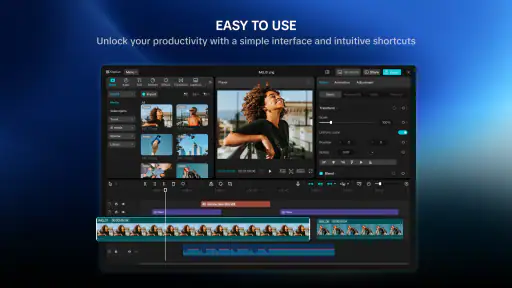
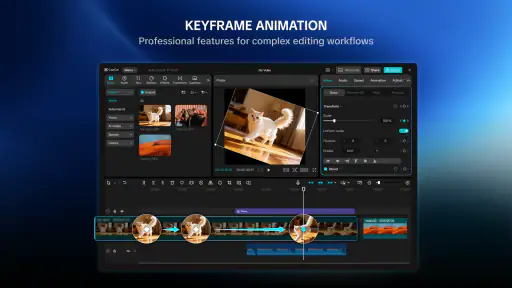
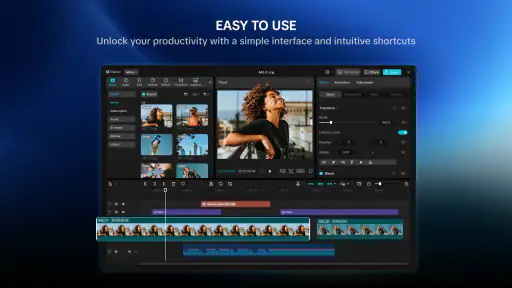
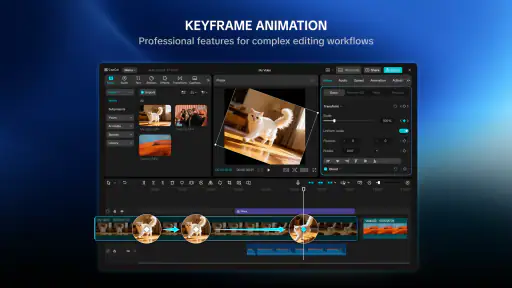
The central advantage of using a pad-oriented version is screen space. Video editing asks me to look at several things at once: the preview, the sequence of clips, the available tools, and the current position in the project. On a small phone, those areas compete for room. On a tablet-sized display, I can usually keep more of the project visible and spend less time opening and closing panels. That reduces the mental effort of remembering where I am, especially when I am trimming several short clips in succession.
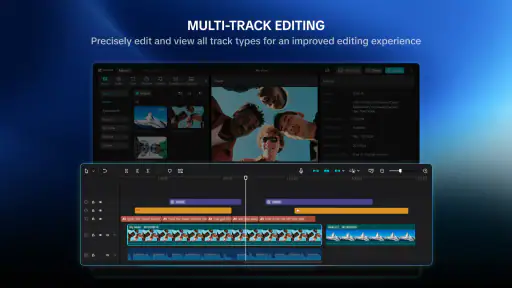
I found readability most helpful during the rough-cut stage. When I am deciding whether a clip should begin before a person speaks or just after the action starts, seeing a broader portion of the timeline gives me better context. I do not have to rely entirely on memory from the previous clip. This is a practical improvement for anyone who finds dense interfaces tiring, including users who need more time to visually locate controls or who lose track when screens change too quickly.
Still, the interface is built around visual editing conventions. The preview and timeline communicate information through images, motion, icons, and position. A person who is comfortable reading a timeline will likely adapt quickly, while someone who prefers text-based workflows may find the arrangement less obvious. I would recommend beginning with one simple project rather than importing a large collection immediately. A short sequence makes it easier to learn which panel is active, where trimming happens, and how to return to the main editing view.
A useful habit is to separate selection from polishing. I first place only the clips I genuinely want, then return to refine timing, music, and effects. This prevents the interface from becoming visually noisy before I know what the story is. It is also a more accessible workflow for people who become overwhelmed by too many simultaneous choices. CapCut Pad is at its clearest when I ask it to solve one editing problem at a time instead of exploring every option in a single pass.
The app’s current version is 9.3.1, and it requires Android 8.0 or later. That makes the operating-system requirement relatively approachable for people using an older compatible device, although the quality of the experience will still depend on the screen, touch response, and available performance of that device. A large display with a responsive stylus or touch surface can feel very different from an older tablet with lag or an inaccurate tap area, so the app itself cannot remove every hardware limitation.
For readers who wonder whether they need editing experience, my answer is no, but patience helps. The basic idea is easy to grasp: import material, arrange it, adjust the parts that matter, and then add sound or visual treatment. The more advanced the project becomes, the more important it is to keep names, order, and timing under control. I would not expect a first-time user to understand every icon immediately, but I also did not feel that a beginner needed to master the whole interface before producing a decent short video.
Why visual organization matters more than flashy effects
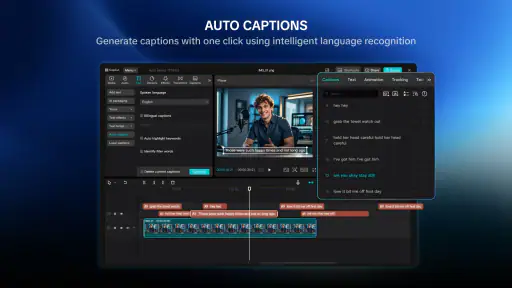
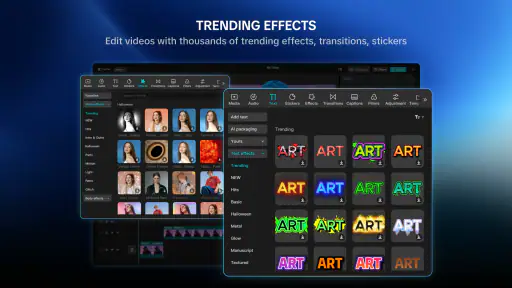
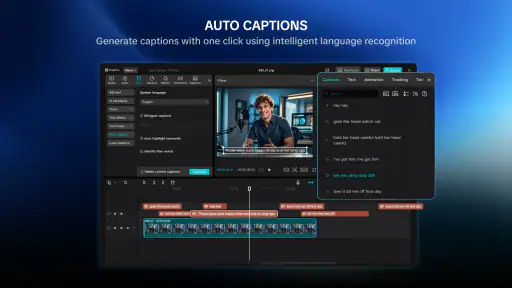
Music and effects are the obvious attractions, but they are not the feature I value most. For readability, the stronger benefit is being able to compare the visual rhythm of a project while making changes. If a transition feels too abrupt, I can inspect the surrounding clips instead of judging that moment in isolation. If captions or other visual elements compete with the subject, the larger working area makes that conflict easier to notice.
There is a trade-off here. More visible tools can mean more visual clutter. A user with attention difficulties may prefer a restrained workflow, using only trimming, basic arrangement, and one audio choice. Someone with low vision may benefit from a larger screen but still struggle with small icons, subtle selection states, or controls that communicate their status mainly through color. I would treat the tablet format as helpful rather than as a guarantee of effortless access.
I also recommend checking the preview at normal viewing size before finishing. An element that looks readable while I am focused on the editor can feel too small once the viewer watches the complete video. This is especially important for text overlays, instructions, and any visual information that the audience must understand quickly. Editing for the viewer’s comfort is different from editing for my own comfort inside the workspace.
Touch, sound, motion, and the situations where it works best
Touch editing can be welcoming because it feels direct: I can move through the sequence, select a clip, and make changes without learning a large keyboard shortcut system. That suits users who prefer pointing and dragging to memorizing commands. It can also help when a person is working away from a desk, such as editing on a sofa, in a classroom, or during a trip. The larger pad format gives gestures more room than a phone, though precise trimming can still be demanding for anyone with tremor, limited dexterity, or difficulty maintaining a steady touch.
For motor accessibility, I would keep projects modular. Instead of trying to make a perfect thirty-second edit in one continuous session, I would assemble the sequence, pause, and return for timing adjustments. This reduces the number of repeated gestures and makes mistakes less costly. Saving or exporting after a meaningful stage is also sensible because a long touch-heavy session can become tiring, particularly when the device is being held rather than placed on a stable surface.
A stylus may make fine selection more comfortable for some users, but I would not assume that it solves every motor issue. A stylus can improve precision while adding another object to hold, and a person who has difficulty with small movements may prefer broad touch targets. The best choice depends on the individual. I would test the same short trim with a finger and any available pointing accessory before committing to a long project.
Sensory needs deserve equal attention. Video editors can combine moving previews, changing thumbnails, music, effects, and repeated visual feedback. That can be engaging, but it can also become tiring or distracting. My approach is to mute or lower the preview audio while arranging clips, then listen during a separate review pass. This makes it easier to concentrate on timing without having sound compete with every visual decision.
Music can improve a simple sequence, yet it can also mask speech and make a video harder to follow for viewers who rely on clear dialogue. I would listen with the device speaker and with headphones if possible, not because one is universally better, but because they reveal different problems. A voice that seems clear through headphones may disappear on a weaker speaker. A soundtrack that feels exciting at first may become exhausting when it continues through every scene.
Effects require similar restraint. They can draw attention to a change of scene or give a personal clip a particular mood, but too many moving treatments make it harder to identify the important action. For viewers sensitive to motion, flashing, or rapid visual changes, a calmer edit is usually the more considerate choice. CapCut Pad gives me room to experiment, but the responsibility for making the result comfortable remains with the editor.
A realistic everyday use case is a family member making a short birthday video from phone recordings. I would import the clips, remove the long pauses, place the clearest moments first, and use music only where it does not cover speech. On a larger display, another family member could sit beside me and point out which moments matter, even if that person does not want to operate the controls. That shared review process is one of the app’s quiet strengths: the screen can become a place for collaboration rather than a private editing surface.
The same workflow can help a student prepare a presentation from recorded demonstrations. I would organize the material into a simple beginning, explanation, and conclusion, then check whether the visual changes happen slowly enough for the audience to follow. The app is useful here because it can combine clips, sound, and effects in one project, but I would avoid decorating an educational video merely because a tool is available. Clear pacing is more valuable than a crowded presentation.
For social content, the editor is a good fit when speed and visual polish matter more than deep control. A creator can work from short recordings and produce something more coherent than an unedited camera roll. However, a person who needs exact audio mixing, detailed color correction, complex compositing, or a highly repeatable professional pipeline may be better served by a dedicated desktop editor. CapCut Pad is convenient, but convenience is not the same as unlimited control.
Where it compares well with familiar alternatives
Compared with editing directly in a phone’s gallery, CapCut Pad offers a more deliberate workspace. Gallery tools are fine for rotating a clip, shortening its beginning or end, or making a quick correction. They become less comfortable when I need to arrange multiple moments, shape a sequence, and coordinate music or effects. The pad interface is more suitable when the video has a beginning, middle, and end rather than being a single clip that needs a quick cut.
Compared with a full desktop editor, it is easier to approach and more practical for casual, mobile, or shared work. I can imagine recommending it to a friend who wants a polished result without first learning a complex professional application. The compromise is precision. Desktop software generally gives me more room for detailed timelines, more exact adjustments, and a workflow designed around a keyboard and mouse. If a project will be revised repeatedly by several people, the desktop option may be the safer choice.
Compared with a basic slideshow maker, CapCut Pad is better suited to footage where timing and movement matter. A slideshow tool may be calmer for someone who wants to place still images and text with minimal motion. I would choose the alternative for a quiet photo story or a person who finds a video timeline confusing. I would choose CapCut Pad when the source material is already video and I want to shape its pace rather than simply display it.
One of the less obvious trade-offs is that ease of experimentation can encourage over-editing. Because music and effects are readily tempting, I sometimes need to make a deliberate second pass focused only on clarity. I watch the video with the question, “What can be removed?” rather than “What else can I add?” That approach produces a more accessible result and keeps the project easier to maintain if I later need to replace a clip or adjust the timing.
Who may still find the experience difficult
The app should not be treated as a complete answer for every access need. A person who depends on strong keyboard navigation, specialized input hardware, or a fully predictable nonvisual workflow may find a touch-centered video editor unsuitable. Likewise, users who need extensive control over motion, audio balance, or visual presentation may spend more time working around the mobile format than benefiting from it.
People with limited dexterity may encounter friction during small timeline adjustments, repeated dragging, or accurate placement of elements. A stable stand, a larger display, and shorter editing sessions can help, but those are practical workarounds rather than built-in solutions. Someone with visual sensitivity may also need to moderate the use of effects and preview audio. The app can support a thoughtful editing process, but it does not automatically produce a calm one.
There is also a social and situational barrier: editing on a pad is convenient only when the device is available, charged, and positioned comfortably. On a crowded commute, in bright outdoor light, or while standing, precise work becomes less pleasant. I would use it for collecting ideas and rough selections in those situations, then finish the detailed edit somewhere stable. The ability to edit anywhere is useful, but it should not pressure anyone into doing delicate work in an awkward posture.
Storage and project organization can become important as the number of clips grows. I would avoid importing every recording from an event. Selecting the strongest material first makes the timeline easier to understand and reduces the chance that an important moment gets buried among near-duplicates. This is a workflow tip rather than a technical promise, but it makes a noticeable difference to both efficiency and accessibility.
The age classification is Teen, so I would keep that in mind when deciding who should use it and how a younger person’s editing activity fits into a family or school setting. The app is free, which lowers the barrier to trying it, but free access does not mean every user will find the workflow equally comfortable. The right question is not simply whether it costs anything; it is whether the touch interface and visual editing style match the person’s abilities and the project’s demands.
My inclusive verdict after using it as a practical editor
CapCut Pad works best for people who want a friendly route from personal footage to a finished short video and who benefit from a larger touch workspace. I especially like it for shared editing, casual creators, students, families, and anyone who finds phone-based timelines too cramped. Its combination of clip arrangement, music, and effects gives ordinary recordings enough structure to feel intentional without requiring professional editing habits from the start.
My recommendation comes with a clear condition: use the extra screen area to simplify the process, not to fill the project with options. Keep the first edit short, separate rough cutting from visual decoration, review sound independently, and watch the final result from the audience’s point of view. Those steps make the experience less tiring and produce videos that are easier for other people to see, hear, and follow.
The app has a 3.4 average from around 1.2 thousand ratings, with over one million installs and 55 reviews, so it has attracted a meaningful audience while still leaving room for mixed experiences. I would read that overall reception as a reason to try it with a small project rather than assume it will suit everyone. Its free price makes that trial straightforward, particularly for someone already using a compatible Android device.
In the end, I would recommend CapCut Pad to a friend who wants more breathing room than a phone editor provides but does not need a full desktop production environment. I would steer a friend toward another option if they require highly precise professional controls, extensive nonvisual operation, or a workflow built around physical keyboard and mouse input. For the right user, the larger canvas and approachable editing style can make creative work feel more possible. For an inclusive result, though, the best feature is not any individual effect; it is the freedom to slow down, reduce clutter, and edit with the viewer’s comfort in mind.


